
Download XChat Azure – Free Mac Chat App, Secure Messaging, Easy Setup
Overview
XChat Azure is a lightweight, free‑of‑charge chat client designed exclusively for macOS. Developed by YunWon Jeong, this tool belongs to the Social & Communication category, specifically under Chat & Instant Messaging. First listed in our catalog in 2016, XChat Azure has attracted a modest but dedicated user base, with four installations recorded to date.
The latest stable release, version 1.17.4, was updated on January 4 2017 and continues to run on macOS X and earlier versions. The application supports three interface languages—English, Spanish, and German—making it accessible to a broad audience. Although the exact install size is not disclosed, the program is known for its minimal footprint, allowing it to launch quickly even on older Mac hardware.
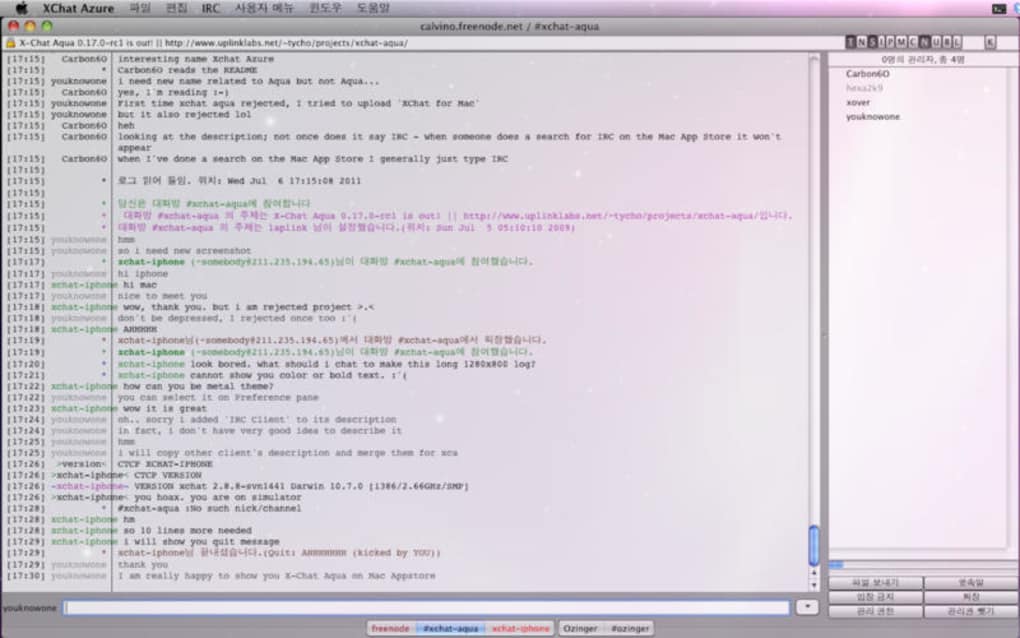
XChat Azure focuses on providing a secure, real‑time messaging experience without the bloat of commercial alternatives. Its core philosophy is simplicity: users can connect to chat servers, join channels, and exchange messages with zero‑cost licensing. Whether you need a reliable IRC client, a private group chat solution, or a platform‑agnostic messenger for quick conversations, XChat Azure delivers a straightforward, no‑frills experience that fits seamlessly into the macOS ecosystem.
Key Features
- Cross‑Platform Server Support: Connect to IRC, XMPP, and custom chat servers with just a few clicks.
- Multi‑Language Interface: Choose between English, Spanish, and German to match your preferred language.
- Lightweight Design: Small install size and low memory usage ensure fast start‑up on older Macs.
- Secure Messaging: Supports SSL/TLS encryption for safe data transmission.
- Customizable Themes: Pick from built‑in light and dark themes or create your own color scheme.
- Channel Management: Easy creation, joining, and moderation of multiple chat channels.
- File Transfer Capability: Drag‑and‑drop files directly into chat windows for quick sharing.
- Notification System: Native macOS notifications keep you informed of new messages even when the app is minimized.
- Search History: Powerful search tool to locate past messages or keywords across all channels.
- Auto‑Update Checks: The app periodically checks for new releases and prompts you to download updates securely.
Installation, First‑Time Setup & Compatibility
Getting XChat Azure up and running is a breeze, even for users who are new to chat clients. Follow these steps to install and configure the software on your Mac:
- Download the Installer: Click the Download XChat Azure button on the official page. The file is a standard
.dmgpackage, sized to keep the download quick even on slower connections. - Mount the Disk Image: Double‑click the
.dmgfile. macOS will open a new window showing the XChat Azure icon and the Applications folder shortcut. - Copy to Applications: Drag the XChat Azure icon onto the Applications folder. This step ensures the app is placed in the proper system directory for easy access and future updates.
- Launch the App: Navigate to your Applications folder and double‑click XChat Azure. The first launch may prompt you to confirm that you trust the developer; click Open to proceed.
- Initial Configuration: Upon opening, you’ll be greeted by a setup wizard. Choose your preferred language (English, Spanish, or German), then enter the server address you wish to connect to. If you don’t have a server, the wizard offers a list of popular public IRC networks you can join instantly.
- Set Up a Nickname: Pick a unique nickname for identification on chat channels. XChat Azure validates the nickname to avoid conflicts.
- Secure Connection: Enable SSL/TLS if the server supports it. This option is located under the Advanced Settings tab.
- Save Preferences: Click Finish to store your settings. XChat Azure will now connect automatically on subsequent launches.
Compatibility: XChat Azure is built for macOS X and earlier versions, including macOS 10.9 (Mavericks) through macOS 10.13 (High Sierra). The app runs natively on Intel‑based Macs and has been tested on Apple Silicon machines using Rosetta 2 translation. While the program does not officially support the latest macOS releases (Big Sur, Monterey, Ventura), many users report successful operation with minimal glitches, thanks to the app’s simple architecture.
Because XChat Azure is a free, open‑source project, there are no hidden fees, trial periods, or forced upgrades. All updates are delivered through the built‑in auto‑update system, ensuring you always have the latest security patches and feature enhancements without manual intervention.
Pros and Cons
Pros
- Completely free with no ads or subscription models.
- Lightweight and fast, ideal for older Mac hardware.
- Supports multiple chat protocols (IRC, XMPP, custom).
- SSL/TLS encryption ensures secure communications.
- Multi‑language interface broadens accessibility.
- Native macOS notifications keep you informed.
Cons
- No official support for macOS Big Sur and later.
- Limited documentation; new users may need community help.
- Feature set is basic compared to commercial rivals like Slack or Microsoft Teams.
- Occasional UI glitches on high‑DPI Retina displays.
- No built‑in video or voice chat capabilities.
Frequently Asked Questions
Is XChat Azure completely free to use?
Yes, XChat Azure is 100 % free. There are no hidden costs, subscription fees, or in‑app purchases. You can download, install, and use the full feature set without paying a single cent.
Can I use XChat Azure on the latest macOS versions?
Officially, XChat Azure supports macOS X through macOS 10.13 (High Sierra). While many users have reported successful operation on newer versions (Big Sur, Monterey, Ventura) using Rosetta 2, some UI inconsistencies may appear. For the most stable experience, use a supported macOS release.
Does XChat Azure support encrypted messaging?
Yes. The client includes SSL/TLS support for servers that offer encrypted connections. You can enable encryption in the Advanced Settings panel during the initial setup or later in the preferences menu.
How do I add a new chat server after installation?
Open XChat Azure, go to the File menu, and select Add Server…. Enter the server address, port, and any required authentication details, then click Save. The new server will appear in your server list for quick connection.
Is there a way to transfer chat logs between devices?
XChat Azure stores logs locally in the ~/Library/Application Support/XChatAzure folder. You can copy this folder to another Mac and place it in the same location to retain your chat history. The app does not currently offer cloud sync, so manual transfer is required.
Conclusion & Call to Action
Overall, XChat Azure stands out as a solid, no‑cost option for macOS users who need a straightforward chat client without the overhead of modern collaboration suites. Its lightweight footprint, multi‑protocol support, and built‑in security features make it especially appealing to users with older hardware or those who value simplicity over flashy extras. While the lack of official support for the latest macOS releases and the absence of voice/video capabilities may limit its appeal for some, the core messaging experience remains reliable and fast.
If you’re looking for a free, secure, and easy‑to‑install chat tool for your Mac, XChat Azure is definitely worth a try. Click the button below to download the latest version and join the community of users who appreciate a clean, functional messaging experience.







